

MCP Connectors
Plane AI works better when it has context beyond what's already in Plane. MCP connectors are how you give it that context.
MCP stands for Model Context Protocol -an open standard for connecting AI models to external tools and data sources. When you connect Plane AI to an external service through an MCP connector, the AI can read and act on data from that service during a conversation. Connect your GitHub account and the AI can reference your pull requests and issues. Connect Sentry and it can pull in error data. Connect Granola and it can search your meeting notes.
Each user connects to a connector independently using their own credentials. The connector is available to everyone in your workspace, but each person authenticates it with their own account. Your GitHub connection is yours - another workspace member needs to connect their own.
Connectors are configured in Workspace Settings → Integrations → Connectors and used in Plane AI chat.
Connect to a built-in connector
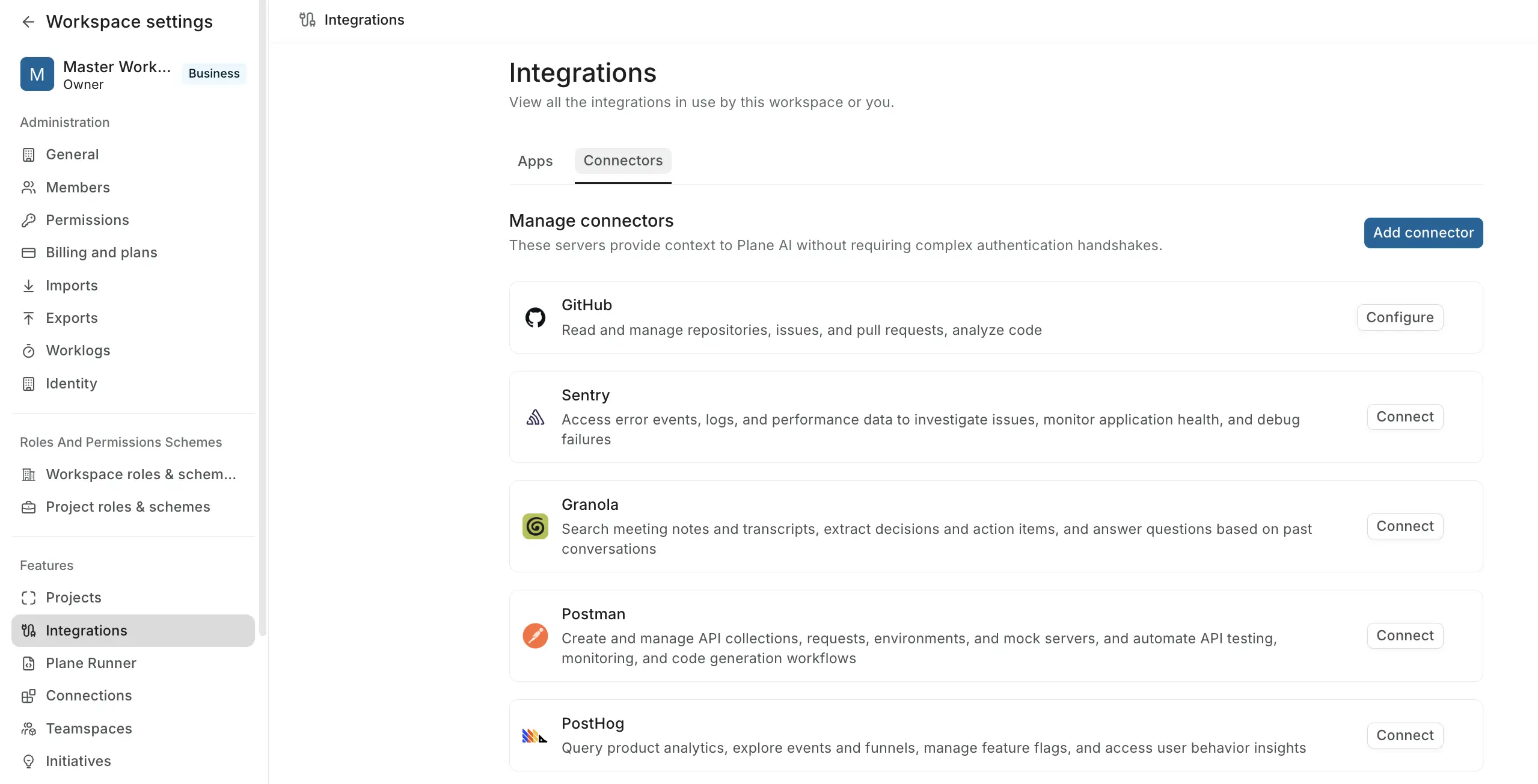
- Go to Workspace Settings → Integrations → Connectors.
- Find the connector you want to use.
- Click Connect.
- Follow the prompts for your connector's authentication method:
- OAuth connectors: A browser window opens. Sign in and authorize access. Plane completes the connection automatically when you return.
- Header connectors: A form appears. Enter your token or API key and click Connect.
- No-auth connectors: Plane connects immediately.
A Connected badge appears on the connector tile when authentication succeeds.
How connection works
Connecting to a connector authenticates you with the external service so Plane AI can access data on your behalf. The connection is per-user - no one else in the workspace shares your credentials or your connection state.
Once you're connected, you can enable a connector for any Plane AI conversation. The AI can then call tools from that service as it works through your request. You stay in control of which connectors are active for each conversation.
What happens when you connect depends on the connector's authentication method:
No authentication
The MCP server accepts requests without any credentials. Plane connects directly to the server URL. This is typically used for self-hosted MCP servers running inside a trusted network.
Header authentication
You provide one or more HTTP headers -usually an Authorization: Bearer <token> header -that Plane sends with every request to the MCP server. The connector form shows you the exact header fields required.
For GitHub, this is a GitHub personal access token or GitHub Copilot token with the appropriate repository permissions.
Your header values are encrypted before storage. Plane never exposes them after you save.
OAuth
Plane runs a standard OAuth 2.0 authorization flow with PKCE. You're redirected to the external service's login and authorization page, grant access, and are returned to Plane. Plane exchanges the authorization code for tokens and stores them securely.
OAuth tokens are refreshed automatically in the background when they expire. You do not need to reconnect after a token expires.
Your tokens are encrypted before storage. Plane never exposes them after the initial authorization.
Disconnect from a connector
- Go to Workspace Settings → Integrations → Connectors.
- Find the connector you're connected to.
- Click Configure and then Disconnect.
Disconnecting removes your credentials from Plane. The connector itself stays available in the workspace -you can reconnect at any time.
Use connectors in a Plane AI conversation
Connectors are enabled per conversation. You choose which ones are active each time you start or continue a chat.
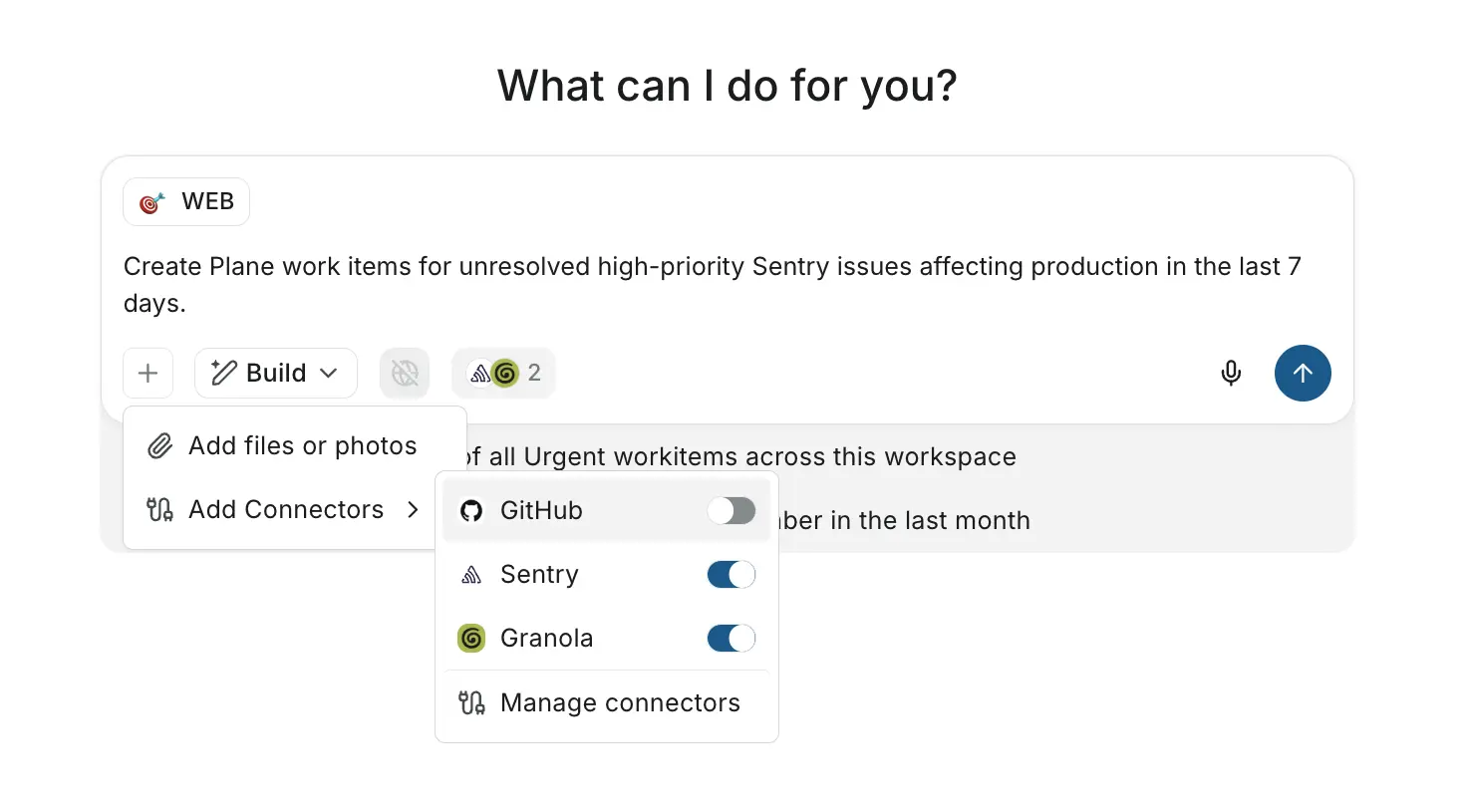
- Open Plane AI and start a conversation in Build mode with a workspace context.
- In the chat input bar, click the connectors pill.
- Toggle on the connectors you want the AI to use for this conversation.
The AI can now call tools from your connected services as it responds. If a connector you want to enable shows as not connected, go to Settings → Integrations → Connectors to connect it first.
Example: Granola in Plane AI
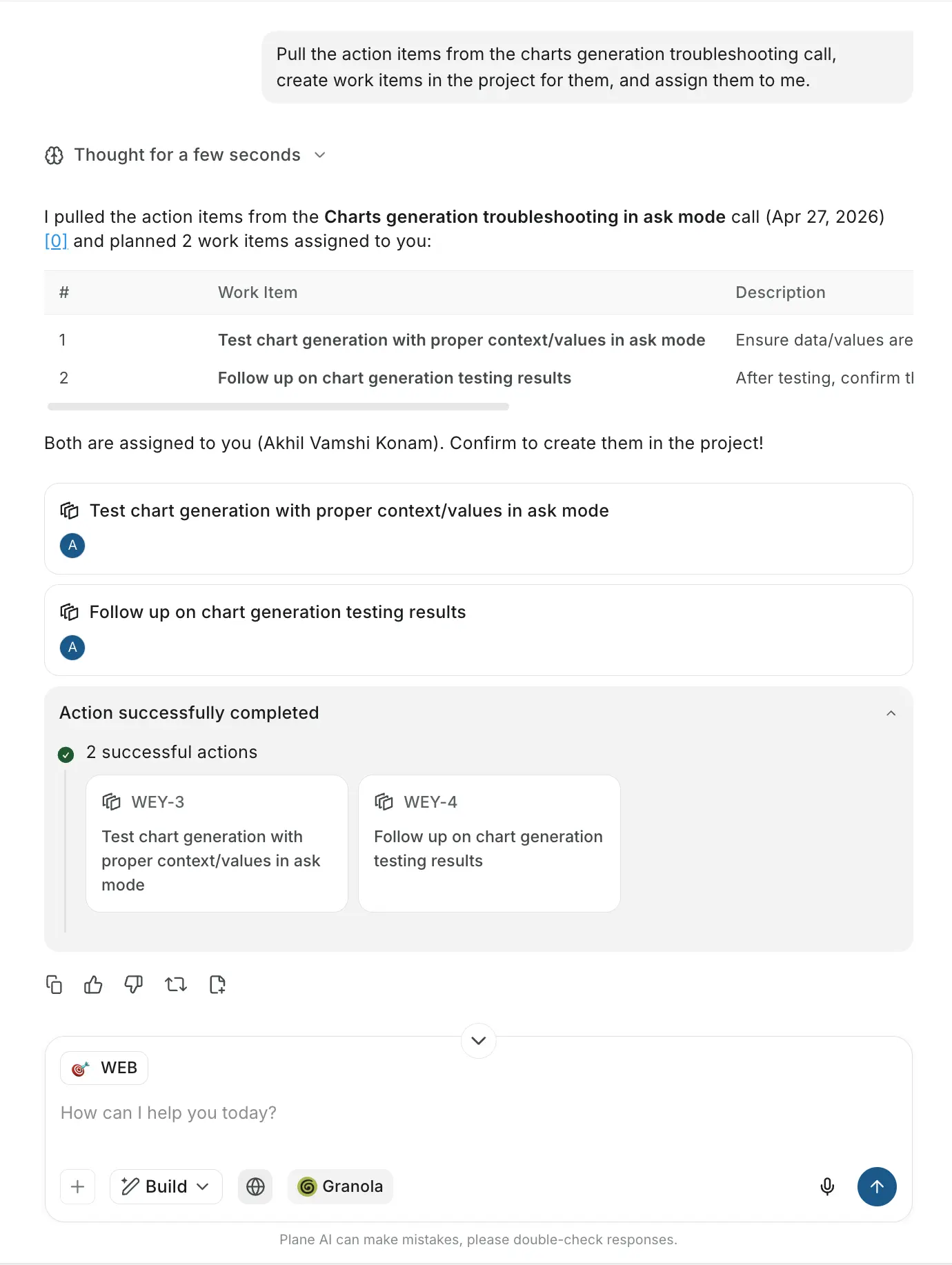
Once Granola is connected, Plane AI can pull meeting notes into conversations. This is useful when turning discussions into action items without manually searching notes.
Create a custom connector
Built-in connectors cover the most common integrations, but you can also add your own. If you run a service that exposes an MCP server, or if you use a tool that publishes an MCP endpoint that isn't in the marketplace, you can add it as a custom connector. Custom connectors you create are visible to other members of your workspace.
- Go to Workspace Settings → Integrations → Connectors.
- Click Add connector.
- Fill in the fields:
- Name (required) -a display name for the connector.
- MCP remote server URL (required) -the full URL of the MCP server endpoint, e.g.
https://mcp.example.com/mcp. - Authentication type (required) -choose None, Headers, or OAuth based on how your server expects to be called.
- Description (optional) -a short description visible to other workspace members.
- Logo (optional) -an icon for the connector tile.
- Click Add connector.
Plane attempts to reach the server and verify the connection. If it cannot connect, check that the URL is correct and publicly reachable.
Managing custom connectors
Only the person who created a custom connector can edit or delete it. Published marketplace connectors cannot be edited or deleted.
Edit a custom connector
- Go to Workspace Settings → Integrations → Connectors.
- Find your custom connector and click Configure.
- Update the name, URL, authentication type, description, or logo.
- Save your changes.
Changing the URL or authentication type of a connector invalidates existing connections. Anyone who was connected -including you -will need to reconnect.
Delete a custom connector
- Go to Workspace Settings → Integrations → Connectors.
- Find your custom connector and click Configure.
- Select Delete Connector.
- Confirm deletion.
Deleting a connector removes it from the workspace and disconnects all users who were connected to it.
Available connectors
These connectors are published in the Plane marketplace and available to all workspaces.
| Connector | Authentication | What Plane AI can do with it |
|---|---|---|
| GitHub | Headers (personal access token) | Read and manage repositories, issues, and pull requests; analyze code |
| Sentry | OAuth | Access error events, logs, and performance data |
| Granola | OAuth | Search meeting notes and transcripts |
| Postman | OAuth | Create and manage API collections |
| PostHog | OAuth | Query product analytics data |
| Evermuse | OAuth | Process customer calls and extract insights |
| Intercom | Headers (API token) | Access customer conversations and support data |
You can also add custom connectors for any service that publishes an MCP endpoint.